
¡Búscanos en las redes sociales!

Want to learn more about your condition?
Here you will find the best resources to become an expert patient!
Report, learn and take care of your treatment
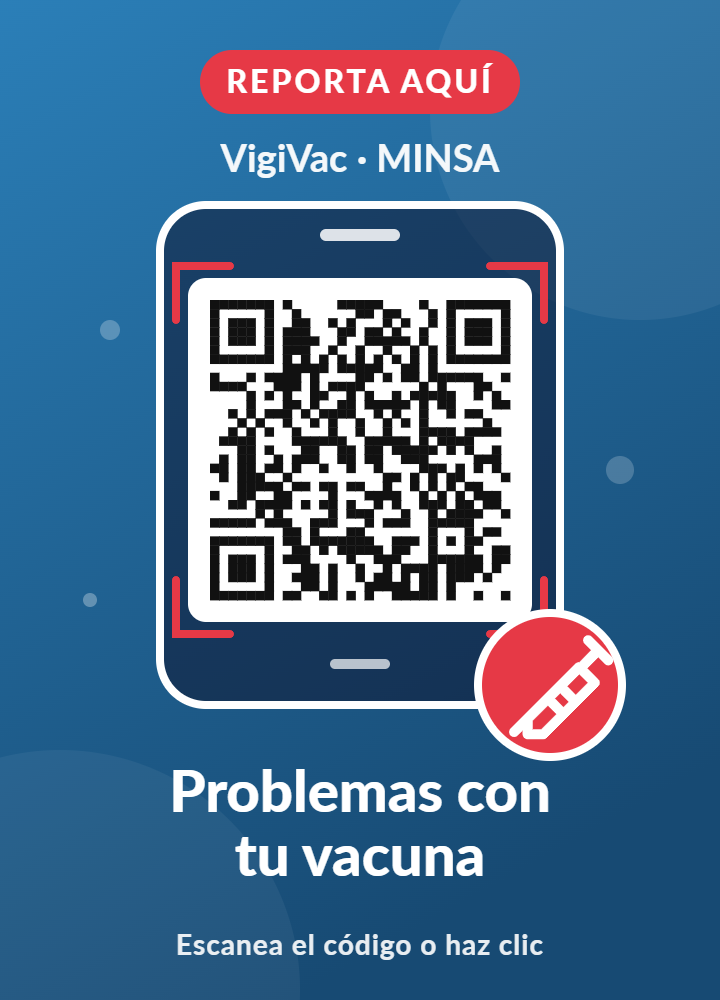

Why report?
No medicine or vaccine is risk-free. Before reaching the market, they are tested in clinical trials with a limited number of people and for a limited time. That is why some adverse reactions, quality defects or effectiveness problems only appear when thousands of patients use them in real life. Pharmacovigilance is the system that makes it possible to detect, assess and prevent these problems, and it depends on one key element: reports.
Every report counts. When a patient reports that a medicine did not work as expected, caused an unexpected reaction or had a defect in its packaging or appearance, they provide information that health authorities cannot get any other way. By bringing many reports together, the Ministry of Health can identify patterns, issue alerts, recall defective lots or update recommendations for use. In this way, your experience helps protect other patients.
This is especially important for people living with rheumatoid arthritis and other rheumatic diseases, who often use long-term treatments, biologic therapies and biosimilars. Knowing and sharing how your body responds is part of taking care of your treatment.
However, many events are never reported because patients do not know they can report them or do not know how. That is why it is essential for you to learn how to report. In Panama you can do it simply and directly with MINSA, through VigiMedic for medicines and VigiVac for vaccines.
Reporting is your right and a way to take an active role in your health. Your voice can make a difference.
How to report a problem with your medicine?
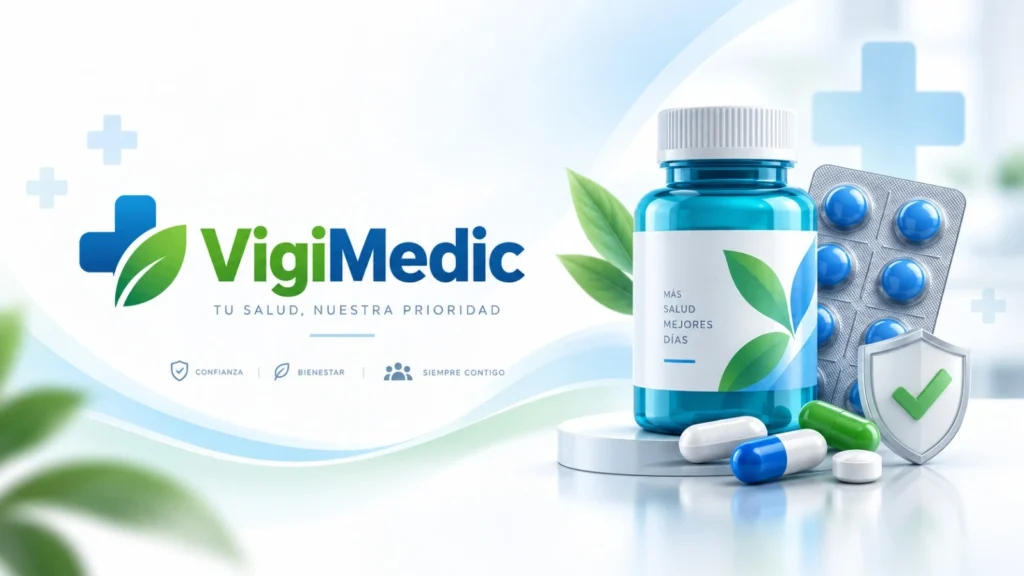
Access to VigiMedic Panama
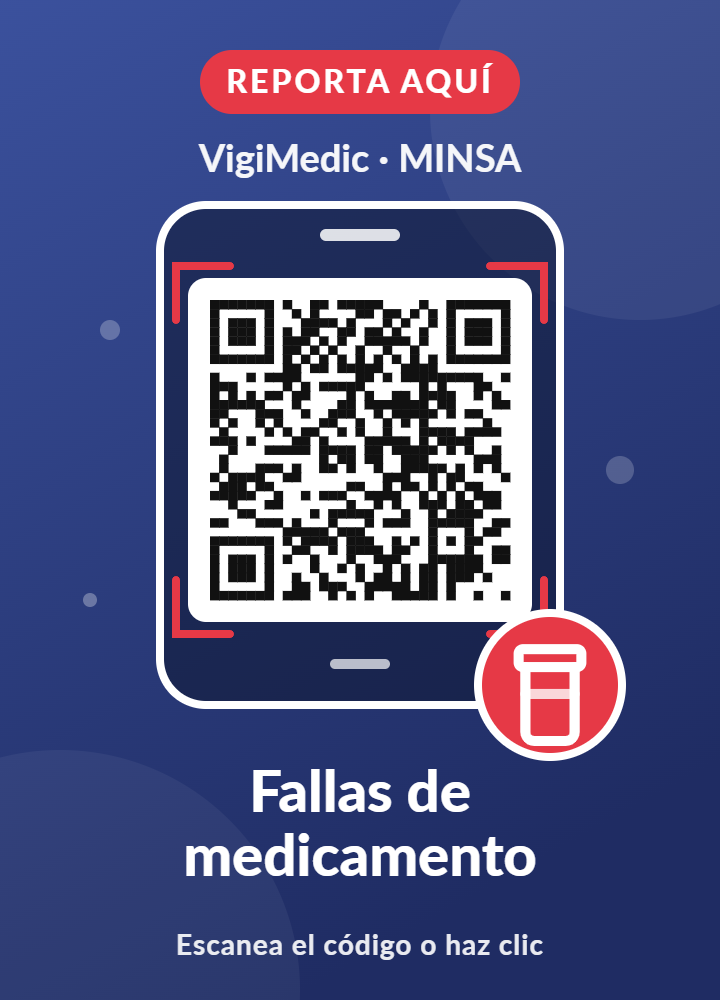
You can report a problem by clicking the link, using the QR code, or through the app by following the guide “How to download VigiMedic on your device?”

What do you need to report a problem?
-
Name
-
Personal ID number
-
Biological sex
-
Weight in kilograms
-
Height in centimeters
-
Date of birth
-
Age when the reaction began
-
Symptoms and signs of the reaction
-
Medicine name
-
Lot number
-
Dose
-
How the medicine is taken (route)
Convert your data for the report
→
–kg
→
–cm
Enter the result in kilograms and centimeters on the MINSA form.
What is VigiMedic Panama?
What is it?
Link: “https://vigiflow-eforms.who-umc.org/pa/vigimedic“
This is a direct link to the Ministry of Health’s website for reporting suspected adverse drug reactions (discomfort caused by medicines). It was designed to make reporting easy, exclusively for patients, consumers and healthcare professionals.
It includes the fields required by national and international regulations. Reports are sent directly and immediately to the National Pharmacovigilance Center (CNFV).
Main features of VigiMedic Panama:
• Electronic reports save the reporter time and make data entry easier.
• Available through a QR code in any browser, on mobile phones and tablets.
• Can be installed as an app on your device.
• No user registration required.
• Lets you enter data without an internet connection.
• Uses very little data to send the report.
• All information sent over the internet is encrypted, keeping your data protected.
• Drop-down menus make data entry easy and standardized.
• The user has full control over the sending process.
• Reporter details are saved, so you don’t need to enter them again.
• Copies of sent reports can be saved on your device.
VigiMedic should not be used by the pharmaceutical industry, health research institutions or distributors to meet their reporting obligations, unless the CNFV officially provides otherwise.
How to use it
These instructions will help you complete your report correctly. Remember to access the form through this link: https://vigiflow-eforms.who-umc.org/pa/vigimedic
HOME SCREEN:
The app’s default language is Spanish.
Click the “Acepto los términos y condiciones” (I accept the terms and conditions) box to start the form. You can review the terms and conditions at any time while entering information by clicking the fixed text “Términos y condiciones” (Terms and conditions) at the top of the window (when opening the “Menú“).
Click “Continuar para el formulario” (Continue to the form).
BEFORE YOU START ENTERING INFORMATION, KEEP IN MIND THE FOLLOWING:
• All personal data of the consumer/patient and the reporter will be handled under the protection and confidentiality principles established in the applicable regulations and laws.
• If you do not have the information for a free-text field, leave it blank. There is no need to write phrases such as “Unknown” or “Not known”.
• Required fields: for the report to be sent to the National Pharmacovigilance Center, you must provide minimum information. A blank required field will be marked in red when you try to move to the next section.
• Inconsistent or incomplete data: if a field that requires complete data is left incomplete, or the information is inconsistent in certain cases, it will be marked in red so you can complete or correct it, for example, between the dates the medicine was taken and the date the discomfort began.
• If one or more fields are not filled in correctly, you must correct them to unlock the next section.
• IMPORTANT: submitting a report does not necessarily establish a causal relationship between the reported medicine and the adverse reactions or discomfort.
Section one: Medicine consumer
Provide identification details of the patient or consumer of the medicine who experienced the discomfort.
Initials: Enter them in capital letters in this order: the first letter of the first and middle names, followed by the first letter of the first and second surnames.
Example: Nicolás José Mora Rodríguez
The initials would be: NJMR
Personal ID card number: enter it exactly as it appears on your document.
Biological sex: choose male, female or unknown, as appropriate.
If you select female, two boxes will appear that you can check if the person is pregnant or breastfeeding.
Weight: Enter it in kilograms and, if needed, use a period as the decimal separator.
Height: Enter it in centimeters and, if needed, use a period as the decimal separator.
Date of birth: Enter the full date of birth starting with the day, followed by the month (from the list) and the 4-digit year.
When reporting birth defects, state the baby’s age and sex at the time of detection and provide the mother’s identification details in the “Describa lo sucedido” (Describe what happened) section (case narrative).
Age at onset of the reaction: give the age of the medicine consumer when the discomfort began. Enter it in the free field and select the time unit from the list.
Country where the reactions occurred: Panama is the default option.
Click “Siguiente sección” (Next section).
Section two: Describe what happened
Case narrative: describe in chronological order and in your own words what discomfort occurred after taking the medicine(s); include relevant details, dates, medicines used, signs, symptoms, illnesses, reactions, lab results or any other relevant situation that provides useful information to analyze the case.
Make sure to describe what happened for each reaction and medicine in as much detail as possible. If you have the information, include the medicines used to treat the adverse reaction(s).
Reaction (symptom, sign or discomfort): enter the discomfort caused by the medicine. Examples: stabbing headache, dizziness, skin rash, muscle pain, itching, among others.
Reaction start date: enter the date the discomfort began, starting with the day, followed by the month (from the list) and the 4-digit year. If you don’t know the day, you can enter at least the month and year.
Reaction end date: enter the date the discomfort stopped, starting with the day, followed by the month (from the list) and the 4-digit year. If you don’t know the day, you can enter at least the month and year. If the reaction/discomfort has not yet gone away, leave this field blank.
Duration of the reaction: if the discomfort went away, enter its duration in the free field and select the time unit from the list. If the reported discomfort continues, leave this field blank.
Outcome of the reaction: select from the options the current status of the discomfort in the medicine consumer:
• Recuperada/Resuelta (Recovered/Resolved): choose this when the discomfort is no longer present and resolved without consequences.
• En recuperación/En resolución (Recovering/Resolving): choose this when the consumer is improving but the reaction persists.
• No recuperada/No resuelta (Not recovered/Not resolved): choose this if the reaction persists without improvement.
• Recuperada con secuelas (Recovered with sequelae): choose this if the discomfort went away but left the consumer with a consequence (a residual effect or permanent outcome resulting from an illness or injury).
• Mortal (Fatal): choose this if the patient died after the reaction.
• Desconocido (Unknown): choose this if the patient’s current status is not known.
Was the event serious?: select “Sí” (Yes) if the reaction caused one or more of the following consequences: it was life-threatening, caused death, caused or prolonged hospitalization, caused disability, caused a congenital malformation or caused another medically important condition. If you choose “Sí” (Yes), you must give the reason(s) it was serious. Note: if the consumer had none of the consequences above, select “No”.
If your report includes more than one reaction or discomfort, click “Agregar otra reacción” (Add another reaction) and enter the information for the other reaction(s) the same way as the first. To delete all the information for a reaction, click the icon.
Click “Siguiente sección” (Next section).
Section three: Medicines
In this section, provide information about the medicine(s) taken before the reaction or discomfort appeared, both those you suspect caused it and those you think did not contribute. Click the “Agregar otro medicamento” (Add another medicine) button for each medicine in your case. If applicable, you can include information about any herbal preparations, drug use or other alternative medicines taken before the reaction.
Medicine name: enter the brand name or generic name as shown on the medicine package. If it contains more than one component (active ingredients), enter them in the same order as they appear on the package.
Probable cause of the reaction: check the box if you believe the medicine caused the reaction or discomfort; if not, leave it blank, but keep in mind that the report must include at least one suspected medicine.
Marketing authorization holder: enter the name of the pharmaceutical company that manufactures/distributes the medicine as shown on the package.
Lot number: provide the medicine’s lot number as it appears on the package.
Dose: state the dose the consumer took (for children, state the dose per kg of body weight). For example: 2 tablets of 50 mg, 3 times a day.
Route of administration: select the corresponding option from the list, e.g., oral, skin, intravenous, etc.
Start of medicine use: enter the date you started using the medicine, starting with the day, followed by the month (from the list) and the 4-digit year. If you don’t know the day, you can enter at least the month and year.
End of medicine use: enter the date you stopped using the medicine, starting with the day, followed by the month (from the list) and the 4-digit year. If you are still taking the medicine, leave this field blank.
Duration of medicine use: enter the duration in the free field and select the time unit from the list. If you are still taking the medicine, leave this field blank.
Reason for the medicine: give the medical reason the medicine was taken. For example: high blood pressure, nausea, pain, etc.
Action taken with the medicine: choose from the list the action taken with the medicine: medicine withdrawn, dose reduced, dose increased, dose not changed, unknown, not applicable.
Click “Agregar otro medicamento” (Add another medicine) if more than one medicine was taken before the reaction or discomfort appeared. To delete all the information for a medicine, click the icon.
Click “Siguiente sección” (Next section).
Section four: Additional information
In this section, provide relevant information from the consumer’s medical history that helps assess the case, since some reactions may occur because of, or in combination with, previous illnesses, food, drug use, other medicines, smoking, alcohol intake or allergies.
Previous or current illnesses: describe important details of the medical history, such as diagnoses, allergies, pregnancy, previous surgeries, other illnesses and lab test results, including when each condition started and its current status. You can also include medicines you consider relevant that were taken before the reaction appeared and are no longer being taken, with their start and end dates.
Additional comments: include any other details you consider relevant to understand the case.
Click “Siguiente sección” (Next section).
Section five: Reporter information
In this section, provide information about the reporter and the source of the report, which is relevant for epidemiological purposes and for contact if needed.
Reporter type: select the reporter profile from the list. If the consumer or patient is the same person making the report, choose “Paciente u otro/a profesional no sanitario” (Patient or other non-healthcare professional); do the same when the report is made by relatives, friends or the patient’s/consumer’s legal representative.
First name(s), Last name(s): of the reporter.
Organization/Health facility: if the reporter is a healthcare professional who received the case at the health facility where they work, give its full name. If you are a patient, consumer or non-healthcare professional, leave it blank.
Email: provide a valid email address so you can be contacted if more information about the case is needed.
Phone: provide a valid phone number (mobile or landline) so you can be contacted if more information about the case is needed.
Before sending the report, we recommend reviewing all sections again; if you forgot any information, you can add it before sending. Move between sections with the “Sección anterior” (Previous section) and “Siguiente sección” (Next section) buttons. Once the case is sent, the original report cannot be changed from VigiMedic.
You can check the “Enviar acuse de recepción por correo electrónico” (Send acknowledgment of receipt by email) box if you want to receive your acknowledgment. (Important to select it to follow up on your report.)
Sending the report
Click “Enviar reportes” (Send reports).
If you provided the minimum required information, the case will be sent successfully to the National Pharmacovigilance Center and the following acknowledgment of receipt will be shown:
The acknowledgment shows the ID under which the report was entered into the national database. You can also download a PDF with all the information you entered.
NOTE: If you tried to send the report but your device has no internet access, a screen will tell you that your report has been added to the queue and that you can send it when your device is connected to the internet.
In this case, the report has been saved on your device but cannot be edited. Select “Enviar reportes” (Send reports) once you have internet access to complete the submission.
You can send all pending queued reports at any time once you have internet access.
If the submission is successful, you will see the acknowledgment of receipt mentioned above.
Follow-ups
If, after sending your report, you want to share new relevant information about the case with the CNFV (National Pharmacovigilance Center), please DO NOT ENTER the report again from scratch in VigiMedic. Instead, send an email to fvigilancia@minsa.gob.pa with the following information:
• Subject: Seguimiento de notificación de VigiMedic (VigiMedic report follow-up)
• Attachment: the downloaded PDF with all the information entered in the original report
• Email body:
- The ID of the original report, given in the acknowledgment of receipt. This ID matters because it identifies the original case in the national database.
- All new relevant information that has come up since the original report was sent.
- The sender’s identification and contact details.
The National Pharmacovigilance Center will update the original report and reply to your email.
Direct link to the instructions document (in Spanish): INSTRUCTIVO_VIGIMEDIC Panamá_2026
How to download VigiMedic on your device?
Download guide
Installing on Android (Chrome)
The prompt to download VigiMedic or VigiVac as an app only appears the first time you visit the website. If you want to download the app later, follow these steps:
1. Scan the QR code
2. Tap the three dots in the top-right corner
3. Select Install app / Add to Home screen
4. Confirm Install app (from the Menu)
5. VigiMedic or VigiVac now appears as an app
Guia_de_descarga VigiMedic Panamá (in Spanish)
How to report a vaccination problem?
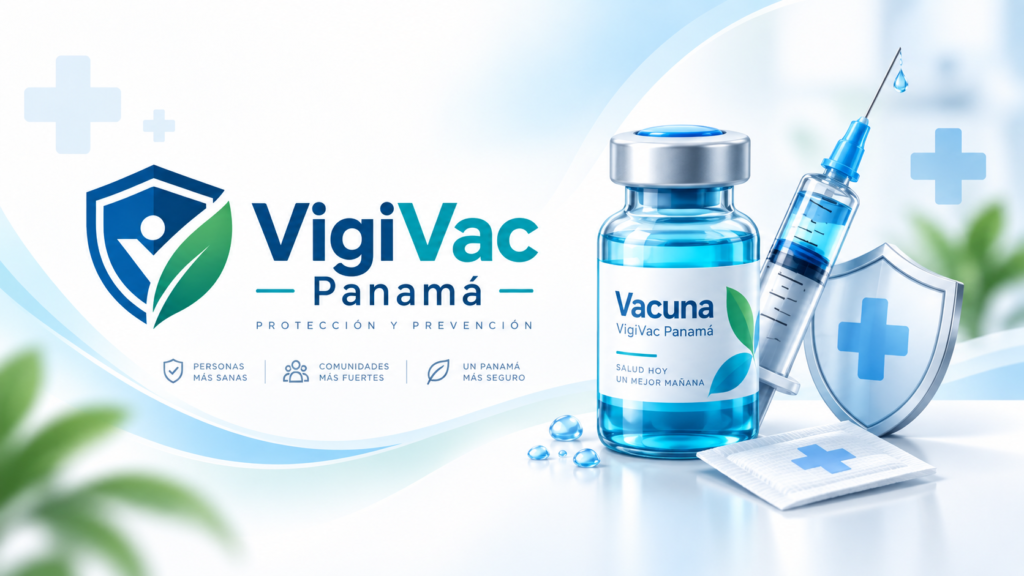
Access to VigiVac Panama
You can report a problem by clicking the link, using the QR code, or through the app by following the guide “How to download VigiVac on your device?”

What do you need to report a problem?
-
Name
-
Personal ID number
-
Biological sex
-
Weight in kilograms
-
Height in centimeters
-
Date of birth
-
Age when the reaction began
-
Symptoms and signs of the reaction
-
Medicine name
-
Lot number
-
Dose
-
How the medicine is taken (route)
Convert your data for the report
→
–kg
→
–cm
Enter the result in kilograms and centimeters on the MINSA form.
What is VigiVac Panama?
What is it?
Link: “https://vigiflow-eforms.who-umc.org/pa/vigivac“
This link lets patients, consumers and healthcare professionals report suspected adverse reactions known as Events Supposedly Attributable to Vaccination or Immunization (ESAVI) to the Ministry of Health quickly and accurately, using mobile phones or other devices, with or without internet access.
It is a standardized electronic form with the 25 main fields recommended by the WHO for collecting ESAVI data, which meet national and international regulations. Reports are sent directly and immediately to the National Pharmacovigilance Center (CNFV).
Main features of VigiVac Panama:
• Electronic reports save the reporter time and make data entry easier.
• Available through a QR code in any browser, on mobile phones and tablets.
• Can be installed as an app on your device.
• No user registration required.
• Reporters can use the forms even when they are not connected to the internet.
• Uses very little data to send the report.
• All information sent over the internet is encrypted, keeping your data protected.
• Drop-down menus make data entry easy and standardized.
• The user has full control over the sending process.
• Reporter details are saved, so you don’t need to enter them again.
• Copies of sent reports can be saved on your device.
VigiVac should not be used by the pharmaceutical industry, health research institutions or distributors to meet their reporting obligations, unless the CNFV officially provides otherwise.
How to use it
These instructions will help you complete your report correctly. Remember to access the form through this link:
https://vigiflow-eforms.who-umc.org/pa/vigivac
HOME SCREEN:
The app’s default language is Spanish.
Click the “Acepto los términos y condiciones” (I accept the terms and conditions) box to start the form. You can review the terms and conditions at any time while entering information by clicking the fixed text Términos y condiciones (Terms and conditions) at the top of the window (when opening the Menú).
Click “Continuar para el formulario” (Continue to the form).
BEFORE YOU START ENTERING INFORMATION, KEEP IN MIND THE FOLLOWING:
• All personal data of the consumer/patient and the reporter will be handled under the protection and confidentiality principles established in the applicable regulations and laws.
• If you do not have the information for a free-text field, leave it blank. There is no need to write phrases such as “Se desconoce” (Unknown) or “No se sabe” (Not known).
• Required fields: for the report to be sent to the National Pharmacovigilance Center, you must provide minimum information. A blank required field will be marked in red when you try to move to the next section.
• Inconsistent or incomplete data: if a field that requires complete data is left incomplete, or the information is inconsistent in certain cases, it will be marked in red so you can complete or correct it, for example, between the dates the medicine was given and the date the discomfort began.
• If one or more fields are not filled in correctly, you must correct them to unlock the next section.
• IMPORTANT: submitting a report does not necessarily establish a causal relationship between the reported vaccine and the events or discomfort experienced.
Section one: Patient
Date the patient reported the event to the health system: if you previously reported it at a health facility, enter the date starting with the day, followed by the month (from the list) and the 4-digit year. If you don’t know the day, you can enter at least the month and year.
Initials: enter them in capital letters in this order: the first letter of the first and middle names, followed by the first letter of the surname(s).
Example: Beatriz María Pinzón García → BMPG
Patient/consumer first name(s): enter the patient’s/consumer’s first name.
Patient/consumer last name(s): enter the patient’s/consumer’s last name.
Address: enter the patient’s/consumer’s home address.
Corregimiento (subdistrict): enter the patient’s/consumer’s home subdistrict.
District: select the patient’s/consumer’s home district from the list.
Note: If the district is not on the list, click “distrito no encontrado” (district not found) and free-text fields will appear for you to enter the patient’s home district and province.
Phone: provide a valid phone number (mobile or landline) so you can be contacted if more information about the case is needed.
Biological sex: choose male or female, as appropriate.
If you select female, two boxes will appear that you can check if the person is pregnant or breastfeeding.
Date of birth: enter the full date of birth starting with the day, followed by the month (from the list) and the 4-digit year.
When reporting birth defects, state the baby’s age and sex at the time of detection and provide the mother’s identification details in the “Narrativa del caso (signos y síntomas)” (Case narrative – signs and symptoms) section.
Age at onset of the reaction: give the age of the patient or vaccine recipient when the reactions began. Enter it in the free field and select the time unit from the list.
Continue to the “Siguiente sección” (Next section).
Section two: Reporter
First name(s), Last name(s): of the reporter.
Organization/Health facility: if the reporter is a healthcare professional who works at a health facility, enter the facility’s name.
Province or Health region: enter the province or health region the report is being made from.
Reporter type: select your profile: physician, nurse, pharmacist, healthcare professional, vaccine recipient, or other non-healthcare professional.
Note: if the consumer or patient is the same person making the report, choose “receptor/a de la vacuna” (vaccine recipient). When the report is made by relatives, friends or the patient’s/consumer’s legal representative, also choose vaccine recipient.
Address: enter the address of the reporter’s health facility, or the patient’s address if the patient is reporting.
Corregimiento (subdistrict): enter the subdistrict of the reporter’s health facility, or the patient’s if the patient is reporting.
District: select from the list the district of the reporter’s health facility, or of the patient/consumer if they are reporting.
Note: If the district is not on the list, click “distrito no encontrado” (district not found) and free-text fields will appear for you to enter the corresponding district and province.
Phone: provide a valid phone number (mobile or landline).
Email address: provide a valid email address.
Continue to the “Siguiente sección” (Next section).
Section three: Health facility (vaccination site or center)
If you have the details of the place where the vaccine was given, provide the following information:
Name: give the name of the vaccination site or center.
Address: give the exact address of the vaccination site, if you know it.
Corregimiento (subdistrict): enter the subdistrict where the health facility, vaccination site or center is located.
District: select from the list the district of the health facility, vaccination site or center.
Note: If the district is not on the list, click “distrito no encontrado” (district not found) and free-text fields will appear for you to enter the corresponding district and province.
Phone: provide a valid phone number (mobile or landline).
Continue to the “Siguiente sección” (Next section).
Section four: Vaccine
In this section, provide information about the vaccine(s) given before the event or discomfort appeared, both those you suspect caused it and those you think did not contribute.
You will need to fill in the information for each vaccine; click the “Agregar vacuna” (Add vaccine) button for each vaccine given in your case. To delete all the information for a vaccine, click the icon.
Medicine name (vaccine): select the suspected vaccine(s) from the list. If you can’t find the vaccine, click Vacuna no encontrada (Vaccine not found). The following fields will appear:
Medicine name (vaccine): enter the brand name or generic name as shown on the vaccine package. If it contains more than one active component (antigen), enter them in the same order as they appear on the package.
You can check this information on your vaccination card.
Marketing authorization holder (laboratory): enter the name of the pharmaceutical company that manufactures the vaccine as shown on the package (if you have it).
Probable cause of the event: check the box if you believe the vaccine entered caused the event or discomfort; if not, leave it blank, but keep in mind that the report must include at least one suspected vaccine.
Date given: enter the date the vaccine was given, starting with the day, followed by the month (from the list) and the 4-digit year. If you don’t know the day, you can enter at least the month and year.
You can also enter the time it was given in the hh:mm fields, using the 12-hour format.
Dose number: select from the list the dose number of the vaccine given. Example: 1st dose, 2nd dose, 3rd, etc. If it was a single dose, choose 1st dose.
Lot number: provide the vaccine’s lot number as it appears on the package, or check it on your vaccination card.
If you don’t know the lot number, check the “Número de lote desconocido” (Lot number unknown) box.
Expiration date: enter the vaccine’s expiration date starting with the day, followed by the month (from the list) and the 4-digit year. If you don’t know the day, you can enter at least the month and year.
Diluent section (only for vaccines that need to be reconstituted):
Diluent name: enter the name of the diluent used.
Diluent lot number: enter the diluent’s lot number.
Diluent expiration date: enter the diluent’s expiration date.
Reconstitution date: enter the date (and time, if you know it) the vaccine was reconstituted.
Continue to the “Siguiente sección” (Next section).
Section five: Adverse event
In this section, enter each event or discomfort that occurred separately. If more than one event occurred, select “Añadir evento” (Add event). To delete all the information for an event, click the icon.
Adverse event (Reaction/event): select it from the list of common adverse events. If you can’t find it, click Evento adverso no encontrado (Adverse event not found) and describe the reaction/event in the free-text field.
Case narrative (signs and symptoms): describe in your own words, or as expressed by the patient, in chronological order, any discomfort, sign, symptom, illness, syndrome, diagnosis or abnormal lab result you suspect was caused by the vaccination.
Include relevant details of the events, dates, other medicines used or any other relevant situation. Make sure to describe what happened in as much detail as possible. If you have the information, include the medicines used to treat the events or discomfort.
Start date: enter the date the discomfort or event began, starting with the day, followed by the month (from the list) and the 4-digit year. If you don’t know the day, you can enter at least the month and year.
Was the event serious? select “Sí” (Yes) if you consider it serious, and the seriousness criteria will appear. If the event was not serious, choose the corresponding option.
Seriousness criteria: if you chose that the event was serious, select one or more criteria that apply to the reported event.
Outcome: select from the options the current status of the discomfort or event:
• Recuperada/Resuelta (Recovered/Resolved)
• En recuperación/En resolución (Recovering/Resolving)
• No recuperada/No resuelta (Not recovered/Not resolved)
• Recuperada con secuelas (Recovered with sequelae)
• Mortal (Fatal)
• Desconocido (Unknown)
Relevant medical history: provide relevant information from the patient’s medical history (diagnoses, allergies, pregnancy, previous surgeries, other illnesses, lab results, previous medicines, etc.).
Sending reports
Before sending the report, we recommend reviewing all sections again. Once the case is sent, the original report cannot be changed from VigiVac.
Click “Enviar reportes” (Send reports).
If you provided the minimum required information, the case will be sent successfully to the National Pharmacovigilance Center and an acknowledgment of receipt with the report ID will be shown. You can also download a PDF with all the information you entered.
NOTE: If your device has no internet access, the report will be added to the queue and you can send it once you are connected. Select “Enviar reportes” (Send reports) when you have internet access.
Follow-ups
If you later want to share new relevant information, DO NOT ENTER the report again from scratch in VigiVac. Send an email to fvigilancia@minsa.gob.pa with:
• Subject: Seguimiento de reporte de VigiVac Panamá (VigiVac Panama report follow-up)
• Attachment: the downloaded PDF with all the information entered in the original report
• Email body:
- The ID of the original report (from the acknowledgment of receipt)
- All new relevant information
- The sender’s identification and contact details
The National Pharmacovigilance Center will update the original report and reply to you.
INSTRUCTIVO_VIGIVAC Panamá_2026 (in Spanish)
How to download VigiVac on your device?
Installing on Android (Chrome)
The prompt to download VigiMedic or VigiVac as an app only appears the first time you visit the website. If you want to download the app later, follow these steps:
1. Scan the QR code
2. Tap the three dots in the top-right corner
3. Select Install app / Add to Home screen
4. Confirm Install app (from the Menu)
5. VigiMedic or VigiVac now appears as an app
Installing on iPhone / iOS / Safari
1. Scan the QR code
2. Add VigiMedic / VigiVac to Home Screen
3. Tap Add to Home Screen
4. VigiMedic / VigiVac now appears as an app
Installing on a laptop or desktop computer
1. Click / go to the site:
- VigiMedic: https://vigiflow-eforms.who-umc.org/pa/vigimedic
- VigiVac: https://vigiflow-eforms.who-umc.org/pa/vigivac
2. Install it from the browser Menu
3. VigiMedic / VigiVac will now be installed
Guia_de_descarga VigiVac Panamá (in Spanish)
Do you find this information useful? Share it to help others living with musculoskeletal and rheumatic diseases!
Biologics and Biosimilars in Rheumatoid Arthritis
Dr. Edgardo O. González S.
Interchangeability of Medicines in Rheumatoid Arthritis
Dr. Ramón Pérez A.
Comprehensive Pharmacovigilance: identifying, documenting and reporting medicine-related events.
Licdo. Edgar Domínguez
Biosimilars: What they are and how they differ from generic medicines and original biologics
Dra. Ivonne Torres
Regulatory requirements for the health registration of biosimilar medicines in Panama: from comparability to pharmacovigilance.
Licda. Elvia Lau
Tender specifications for complex medicines.
Licda. Ramiro Esquivel
Adverse reactions to biologic therapies
Dra. Rossana Read A.
Pharmacovigilance and follow-up of adverse events
Dr. Ramón Pérez Acuña
There are many ways to support us!
Articles about arthritis
Recent articles


¿Por qué estoy deprimido?
Las personas que padecen todos los tipos de artritis presentan un mayor...
Read more...
Artritis Idiopática Juvenil
La artritis idiopática juvenil es la enfermedad reumática más frecuente en la...
Read more...